Explainer films and demos
Videos: how DiggAI works
Here we collect short films and demos showing how DiggAI is used — for patients, for practices and for care facilities. Every film with subtitles in 13 languages. Everything DiggAI can do, demonstrated once.
1For patients
For patients 10
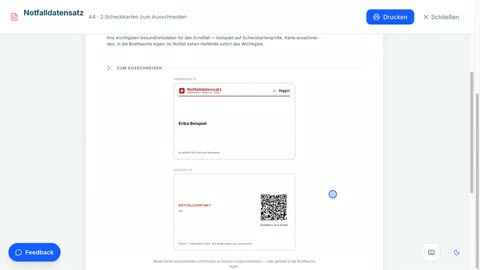
Open your health record — without an account, app or PIN: present it anywhere — for everyone, even without an ePA
1:46
The film shows how easy it is to start: create the record without an account, insurer app or PIN and keep adding reports. Then the two paths: send entries directly and encrypted to a registered practice — or present the record as a document at every doctor visit, printed or by post. Plus the advance-care documents and the emergency pass for your wallet.
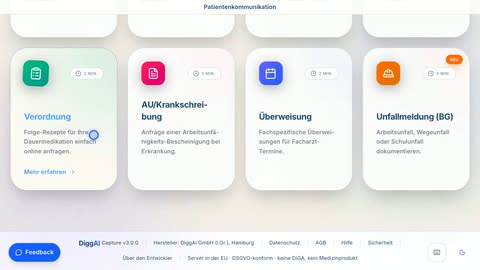
Find or change a medical practice — for patients
0:50
The film shows how to find your practice on diggai.de: from searching by name or town to the menu with all requests — and how to change your practice at any time.
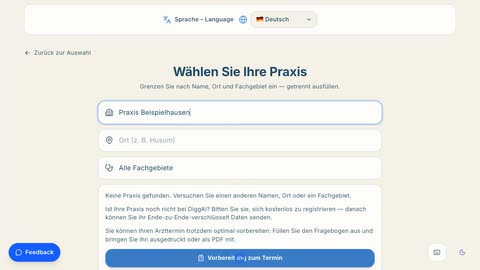
Making an appointment request — choosing the recipient practice and sending encrypted — for patients
3:10
The film shows the whole path: choose the recipient practice in the search, start the appointment booking, fill in the short questionnaire and send the request encrypted. Important: if a practice is not registered with DiggAI, fill in the questionnaire via “Prepare for your appointment” and print it or send it as a PDF.
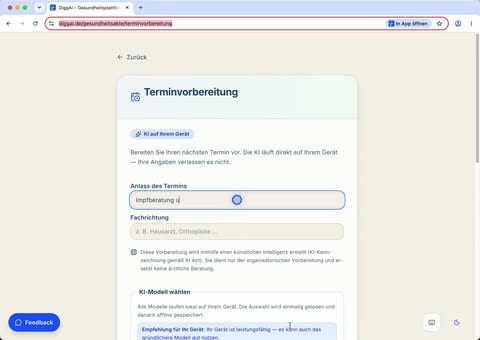
AI-supported analysis and appointment preparation — questions for the conversation, directly on the device — for patients
1:13
The film shows the AI appointment preparation: state reason and specialty, consent once, choose the local AI model — the analysis runs entirely on your own device and delivers questions for the conversation plus a what-to-bring list, savable as a file. Nothing leaves the device (AI labelling per the AI Act, not a medical device).
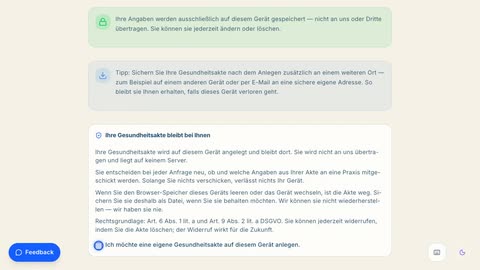
Creating and saving your health record for the first time — for patients
1:45
The film shows the first creation of the health record: a few core details, everything else voluntary — at the end the record is stored on your own device.
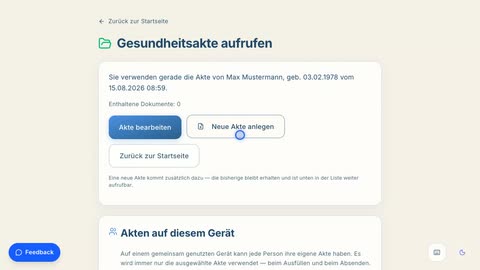
Managing several health records — for patients
0:38
The film shows the record list: switching between records — for example for children or relatives — creating further records, deleting, and importing a saved record file again.
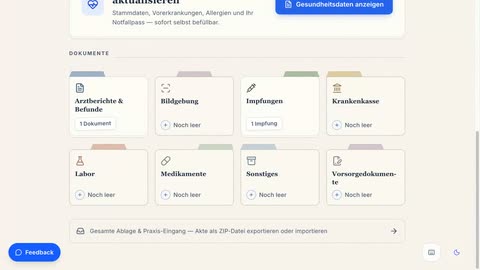
How to use your health record — for patients
1:36
The film shows the health record as a whole: filling in and updating your health data, placing a document in a compartment, adding a vaccination — and saving the record as a file or exporting it as a ZIP. Everything stays on your own device.
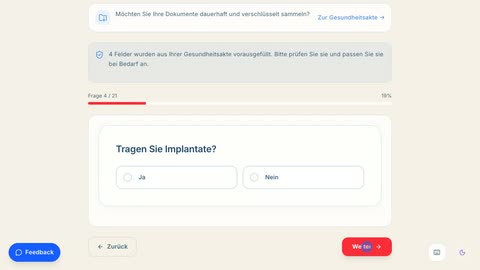
Creating the emergency data set — with a wallet-sized emergency card — for patients
1:10
The film shows the way to the emergency data set: answer the key questions, generate the QR code live — and open the print sheet with two wallet-sized cards.
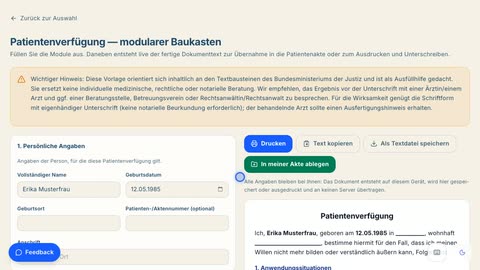
Creating a living will as an advance care document — for patients
0:52
The film shows the modular living-will builder: tick the modules, the document text is created live — at the end the document is stored in the “Advance directives” compartment of the health record.
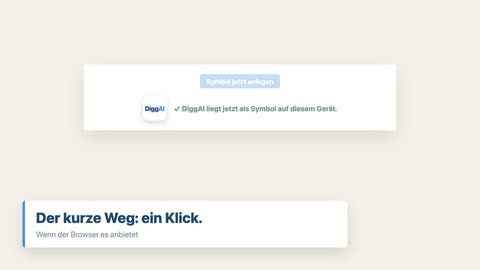
Placing the health record as an icon — on the desktop, the home screen or in the dock — for patients
1:51
If you open your health record often, you need not type the address every time. The button “Add as icon” on the page “Open health record” creates an icon carrying the DiggAI logo. The film shows every route: the one-click way when the browser offers it, the shortcut file to drag onto the desktop, the tile on iPhone and iPad via “Share”, and “Add to Dock” in Safari on the Mac. The icon always leads to the open-record view, where each person on the device picks their own record.
2For practices
For practices 16
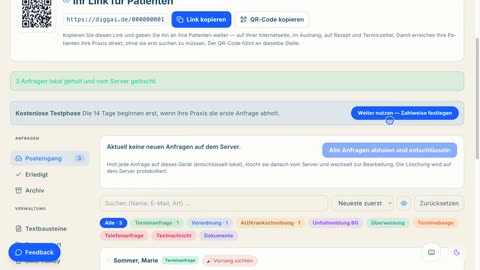
The practice inbox at a glance — sidebar, incoming, rows and filters — for practices
1:30
The map of the practice inbox: on the left the requests (inbox, done, archive) and the administration, at the top the strip showing what lies encrypted on the server. The film shows the fetching, the make-up of a row — name, type, priority badge, concern and the single main action —, the opened request, the counting chips, search and order.
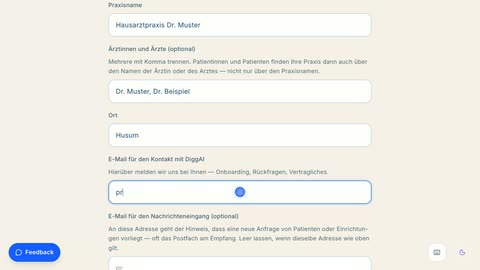
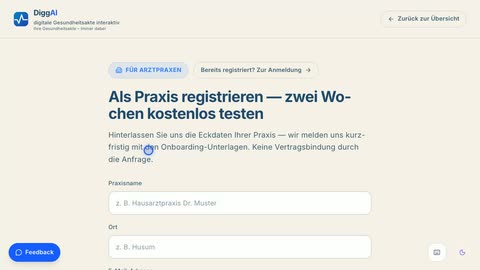
Registering as a medical practice — for practices
1:37
The film shows the registration: practice name, optionally the doctors' names, town, two email addresses, specialty group, the country of the practice and the languages spoken there, optionally logo and IGeL link — plus the billing details for the time after the free trial phase. No contractual obligation, and no payment is created yet. DiggAI will get back to you with the onboarding documents and the practice key. The submission is simulated in the film.
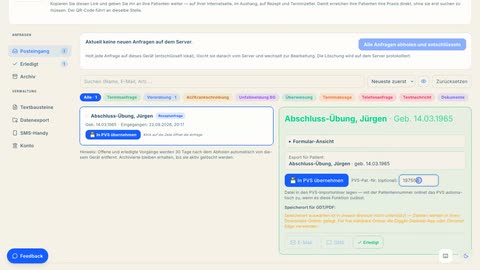
After registration: set up the practice Mac and transfer the first request into tomedo — for practices
5:10
The film shows the whole route on the Mac that runs tomedo: download the package, get past the macOS block for unsigned programs, the setup assistant, GDT import and file listener in tomedo, the permissions under Accessibility — and then the test: a prescription request as the practice patient, taken over in the practice and, after about 15 seconds, an entry with a PDF in the patient record. Every value is in the installation guide at diggai.de/downloads.
The practice key on every device — inserting the file and pairing devices — for practices
0:54
The film shows the whole path: with the registration the key file is downloaded and inserted on the first device — only after that does every further device take over the key via QR code or pairing code, encrypted and without the server ever seeing it.
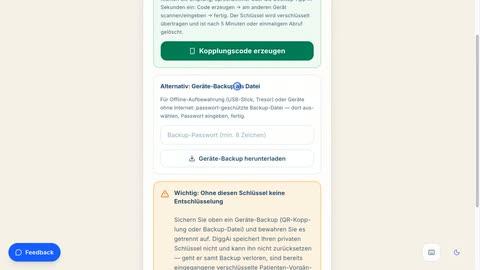
Practice key and passphrase — create a backup copy and restore it on another device — for practices
1:24
The film shows how to handle the practice key: insert the key, download the device backup with a passphrase, keep file and passphrase apart — and how the same backup brings a second or replacement device back into service. Plus the three rules: never send the key as a file, never store backup and passphrase together, and if lost, re-issue with a call-back. Also: how to change the passphrase — a new backup with a new passphrase, the old file is retired.
Update practice details — maintain name, doctors, logo, IGeL link and languages yourself — for practices
1:07
The film shows self-service for the practice listing: entry via “Update practice details” on the doctors page, identification via the practice key (no password). As soon as the BSNR is there, the page fetches the current entry by itself and shows it — practice name, doctors, languages spoken. Then change and save. Key, callback number and inbox email stay protected on purpose. Saving is simulated in the film.
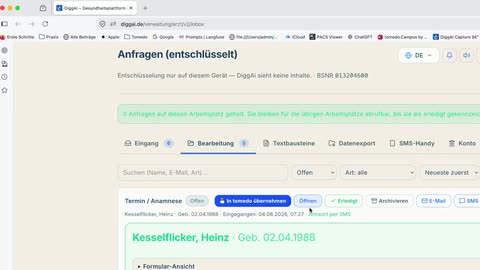
Collecting a request, decrypting it and transferring it into the practice software — for practices
1:02
The film follows one request: it is collected from the practice inbox, decrypted, and arrives as a chart entry together with the PDF in the right patient record.
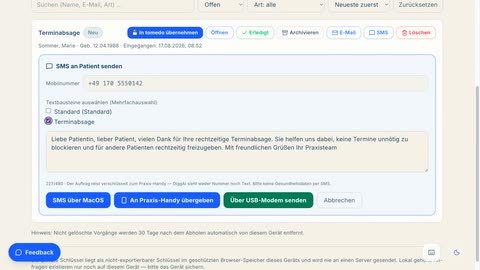
Creating text blocks and answering a request by SMS — for practices
1:13
The film shows both in turn: in the “Text blocks” tab, two reusable replies are created — a general one and one for appointment cancellations. Then an incoming appointment cancellation is fetched and answered by SMS straight from the inbox: tick the block, adjust the text, hand it over to the practice phone. The job travels encrypted; DiggAI sees neither the number nor the text.
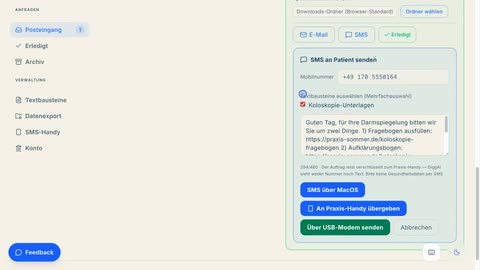
How do I send patients specific questionnaires or information sheets — for practices
1:21
Using a colonoscopy as the example: in the „Textbausteine" (text blocks) tab a block called „Koloskopie-Unterlagen" is created that carries both addresses — the questionnaire to fill in and the information sheet, which should be sent to the practice in advance or brought to the appointment filled in. At the next appointment request one tick puts the block into the reply; it goes out by email or SMS. The addresses belong to your practice — DiggAI creates no forms, it carries your links.
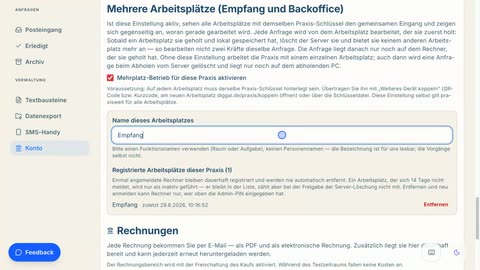
Setting up multi-workstation mode — reception, consulting room and back office on one inbox — for practices
0:33
Without this setting, only the computer that fetched a request can see it — the most common cause of “the requests are missing on the second computer". The film shows the switch in the “Account" tab, how a workstation is named, and the list of active workstations. A request is deleted only once they all have it.
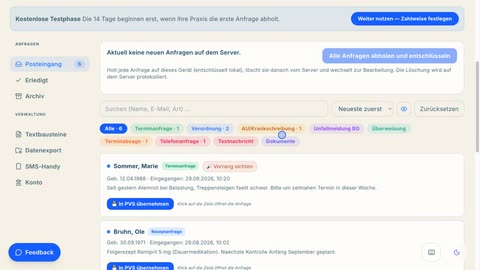
The filters in the practice inbox — search, sort by type and status — for practices
1:10
Four fields sit above the request list: search (name, e-mail, type), status, type and order — plus “Reset". The film shows them on six requests: find a person, show one type only, retrieve a completed request and turn the order around.
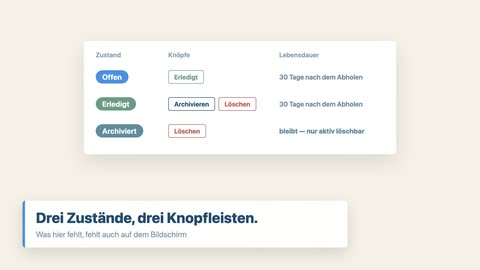
Fetch, Done, Archive, Delete — what the four buttons on a request actually do — for practices
1:43
The film explains the four buttons and the deadline behind them. Fetching first stores the request on the practice device and only then deletes the copy on the server. “Done” ticks it off but does not change its lifespan: the thirty days count from the fetching, not from marking it done. “Archive” takes a completed request out of that deadline — it then stays until someone actively deletes it. That is why “Delete” appears on completed and on archived requests.
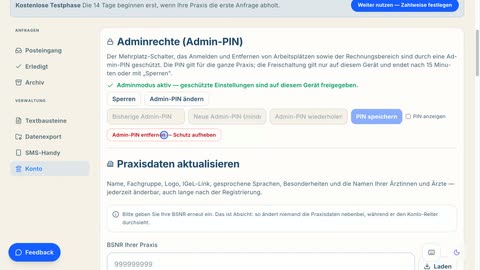
Admin rights in the account menu — who may change the practice settings, and on which computer — for practices
1:37
Without a PIN, all users and all computers have the same rights. If you do not want that, set an admin PIN — and decide at the same time which workstations will even accept it. The film shows the recommended order: first create all workstations, then set the PIN and the administrators. Protected are the multi-workstation switch, registering and removing workstations, and the invoice area — invoices are only visible once unlocked. That way nothing gets changed by accident. Unlocking applies only on your own device and ends after 15 minutes; when changing it, the protection can also be lifted entirely.
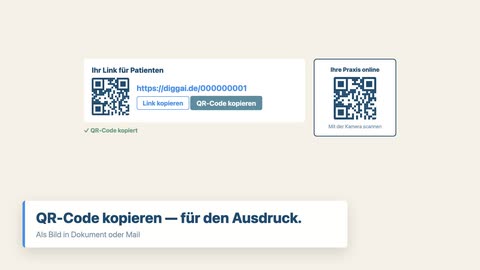
How patients find their practice via a link — copy it, put it on the practice website, display it as a QR code — for practices
1:23
Every practice has its own link at DiggAI. Whoever opens it lands directly with you, without going through the practice search. The row “Your link for patients” sits in the practice inbox above the tabs and in the practice details below your BSNR — with the address and the same route as a QR code. One button copies the link for your website, the other the QR code as an image for a notice, a prescription or an appointment slip.
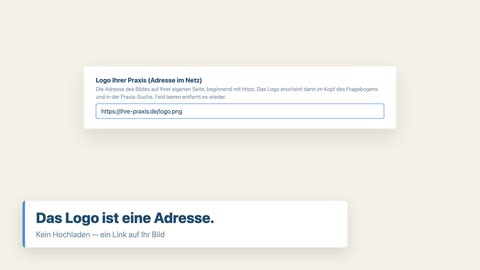
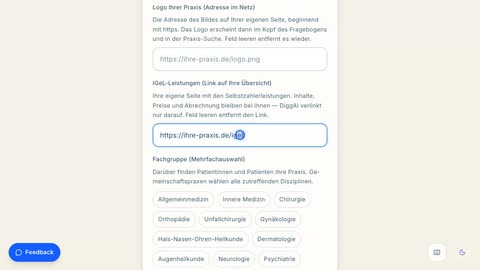
Linking your practice logo and IGeL overview — what patients see of it — for practices
1:35
Two fields in the practice details decide how your practice looks at DiggAI. The logo is not uploaded but linked: you enter the address of the image on your own website, after which it appears at the top of the questionnaire and in the practice search. The second field links your overview of self-pay services; patients then see a tile for additional services. Content, prices and billing stay with you — DiggAI only links to them.
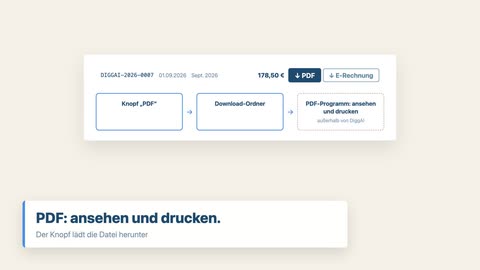
Collecting invoices — open with the admin PIN, view, download, print — for practices
1:37
You receive every invoice by e-mail — and it also stays in the portal permanently, where you can collect it again at any time. The film shows the way: open the invoice area in the “Account” tab, unlock it with the admin PIN, and use the two buttons on each invoice — “PDF” for filing and printing, and the electronic invoice under EN 16931 for DATEV, lexoffice or sevDesk. Printing happens in your PDF program; there is no print button in the portal.
3For healthcare providers
For healthcare providers 2
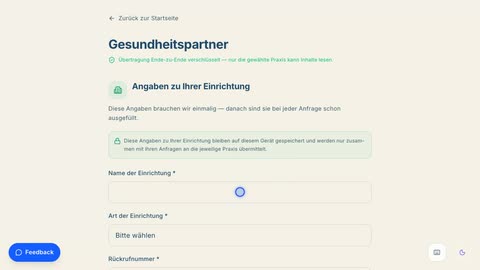
Free access for health partners — sending a concern directly to the practice — for all health service providers
1:16
The film shows the direct path without registration: enter your organisation’s details once, choose the practice via the radius search around your own postcode, then pick the concern from the menu — for example the prescription for home nursing care — with a description and an attached file, name the patient and send encrypted. If the practice is not on DiggAI, a PDF for printing is created instead.
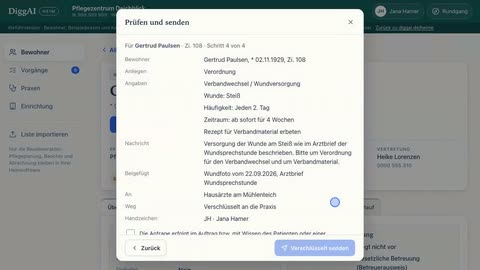
DiggAI Heim: requesting a prescription for wound dressing changes from the GP — for care facilities
1:15
The film shows the demo version for care homes: a nurse opens a resident's record on the tablet, requests a prescription for wound dressing changes plus dressing material from the GP, attaches the latest wound photo and the doctor's letter, confirms acting on the resident's behalf and sends the request encrypted. The practice replies as usual, for example by fax, and the reply is noted in the record.
4Didn’t find your topic?
Didn’t find your topic?
For a request that is already under way, your practice team can help — they see the case, we do not. If something is missing on this page or does not work, write to us through the feedback channel. Practices will find setup, manual and the practice app in the downloads.